
Microsoft Outlook Calendar
Book meeting rooms in Outlook.
Find available rooms across office locations and invite colleagues from Outlook. Keep check-in notifications connected through Microsoft Teams.
Illustrative Outlook event suggests three meeting rooms, selects Room 4 for six people and adds it to the invite.


Outlook Calendar Integration
Find and book rooms easily
Kadence room booking software integrates seamlessly with your Outlook calendar for faster adoption. Search for available spaces across different office locations easily directly from the Outlook calendar. Book rooms and invite colleagues with just a few click.

MS Teams Notifications
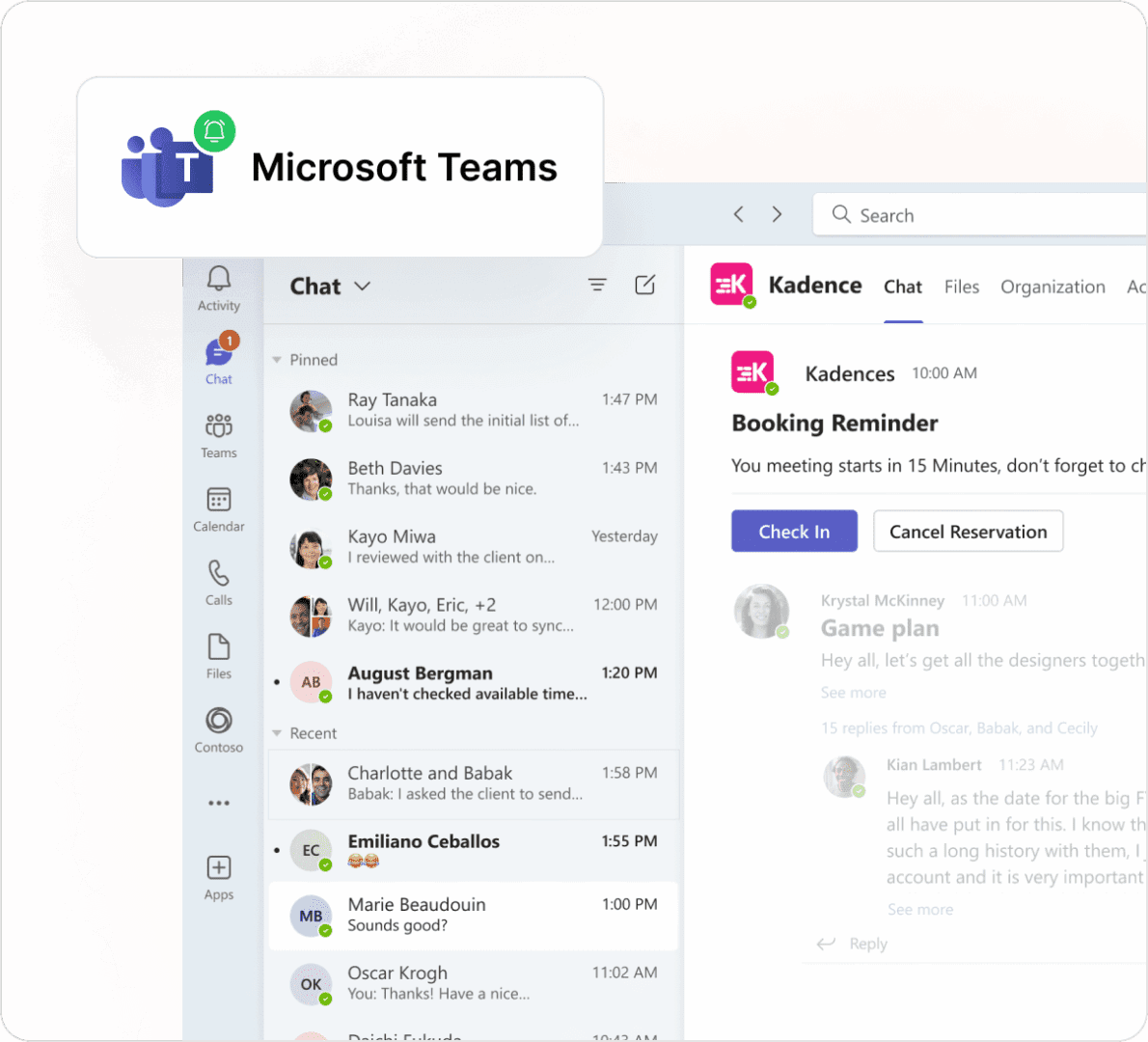
Check-in notifications and space booking through MS Teams
All of your team communications and space booking tools in one place. Check in via Kadence mobile app or MS Teams with just a tap, find the right meeting room fast with capacity and amenities filters.
Book rooms from inside an Outlook meeting invite
The Kadence Room Booking add-in puts room search in the Outlook toolbar. Open a meeting, open the Kadence panel and pick a room. The room goes into the Location field, and the booking syncs to Kadence.
- See available rooms in real time, with capacity, location and amenities.
- Search rooms across your offices, not just the building you sit in.
- Add or remove a room with one click, or copy a room's address to forward a meeting.
- Works in Outlook desktop on Windows and Mac, with partial support in Outlook on the web.
Two-way sync with Microsoft 365 room calendars
Kadence connects to your room mailboxes in Exchange Online. When someone books a room in Outlook, the booking appears in Kadence shortly after. When someone books a room in Kadence, in Microsoft Teams or at a Kadence Room Display, Outlook creates the event and invites the room. Outlook stays the source of truth, and two-way calendar sync prevents double bookings.
Check-in and auto-release for meeting rooms
Booked rooms often sit empty. Kadence asks people to check in from the Kadence apps, Microsoft Teams or a Kadence Room Display at the door, and auto-release frees rooms nobody checks in to. Room displays also run on Neat devices. Check-ins and no-shows feed Workplace Insights, so you see how meeting rooms are really used, not just how they are booked.
Set up for Microsoft 365 admins
- Copy your tenant ID from the Microsoft Entra admin center.
- In Kadence, go to Settings, Integrations, Calendar Integration, and connect Outlook with the tenant ID.
- Grant consent in Microsoft Entra ID. Kadence asks for Place.Read.All, User.Read.All and Calendars.ReadWrite.
- Link each Kadence room to its Microsoft 365 room mailbox.
- Deploy the add-in from the Microsoft 365 admin center, under Settings, Integrated apps: to everyone, to chosen groups or as optional.
Full steps: Outlook rooms setup guide and Outlook add-in setup guide.
Permissions and security
A Microsoft admin with the Entra roles listed in the setup guide grants consent. Kadence connects to one Microsoft tenant per account, and multi-tenant setups use a service account. Room settings in Microsoft 365 take priority over Kadence settings, and delegates can still approve room requests. People sign in with Microsoft Entra ID single sign-on. See security and trust for certifications.
FAQ
Frequently asked questions
Is there a meeting room booking system integrated with Outlook?
Yes. Kadence is meeting room booking software that works inside Outlook. The Kadence add-in lets people find and book rooms from a meeting invite, and two-way sync keeps Outlook and Kadence in step. Rooms can also be booked in the Kadence apps, in Microsoft Teams or at a room display, and those bookings show in Outlook too.
Does Kadence work with Exchange Online?
Yes. Kadence syncs with room mailboxes in Exchange Online, part of Microsoft 365. Rooms must be cloud-based: Kadence does not sync room mailboxes hosted on Exchange on-premises. Rooms also need to be on one Microsoft tenant and visible in the Global Address List.
How do I book a meeting room in Outlook with Kadence?
Create or open a meeting in Outlook and click Kadence Room Booking in the toolbar. A side panel shows available rooms with their capacity, location and amenities. Click Add to put the room in the Location field. The booking then syncs to Kadence, so the room shows as booked everywhere.
What Microsoft 365 permissions does Kadence need?
For room sync, an Entra admin grants Kadence Place.Read.All, User.Read.All and Calendars.ReadWrite. The Teams app needs admin consent for the Kadence Bot so it can message users. Admins deploy the Outlook add-in from the Microsoft 365 admin center and choose who gets it.
Teams setup is on the Microsoft Teams page.
What happens if nobody checks in to a booked room?
Kadence releases the room after the check-in window your admins set, so someone else can book it. People check in from the Kadence apps, Microsoft Teams or a Kadence Room Display at the door. No-shows appear in Workplace Insights, so you can see which rooms are booked but not used.
Which versions of Outlook does the Kadence add-in support?
The Kadence add-in works in Outlook desktop on Windows and Mac. Outlook on the web has partial support. People can install it themselves from Get Add-ins in Outlook, or IT can deploy it to everyone, to chosen groups, or as an optional add-in.
Explore more
Next step
Start working smarter with Kadence
Book a demo, and see Kadence in action. Find out how we can help create smarter, more productive workplace for your people.